ReactとThree.jsを使って、スライダーで高さを操作できるBoxを作成する手順を説明します。
必要な準備
- Node.js(バージョン16以上)をインストール
- Reactアプリの作成(既存のアプリを使う場合はスキップ)
1. Reactアプリの作成
npx create-react-app box-slider
cd box-slider
npm start
2. 必要なパッケージをインストール
Three.jsを使用するために、以下のコマンドを実行します:
npm install three @react-three/fiber @react-three/dreithree: 3Dライブラリ@react-three/fiber: ReactとThree.jsを統合するためのライブラリ@react-three/drei: ユーティリティコンポーネント
box-slider/package.jsonでインストールされているか確認できます。
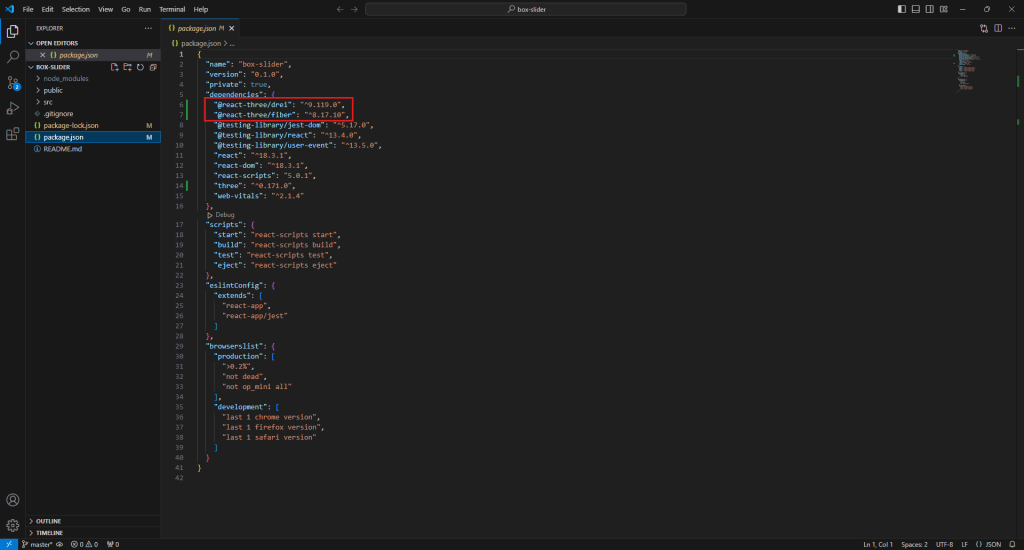
3. Boxとスライダーを実装
src/App.js を以下のコードに変更
import React, { useState } from 'react';
import { Canvas } from '@react-three/fiber';
import { OrbitControls } from '@react-three/drei';

function Box({ height }) {
  return (
    <mesh>
      <boxGeometry args={[1, height, 1]} />
      <meshStandardMaterial color="orange" />
    </mesh>
  );
}

function App() {
  const [height, setHeight] = useState(1);

  const handleSliderChange = (event) => {
    setHeight(Number(event.target.value));
  };

  return (
    <div style={{ display: 'flex', flexDirection: 'column', alignItems: 'center' }}>
      <h1>Box Height Adjuster</h1>
      <input
        type="range"
        min="1"
        max="5"
        step="0.1"
        value={height}
        onChange={handleSliderChange}
        style={{ width: '300px', marginBottom: '20px' }}
      />
      <Canvas style={{ width: '400px', height: '400px' }}>
        <ambientLight />
        <pointLight position={[10, 10, 10]} />
        <Box height={height} />
        <OrbitControls />
      </Canvas>
    </div>
  );
}

export default App;
4. アプリの実行
npm startブラウザで http://localhost:3000 を開くと、スライダーで高さを調整できる3Dボックスが表示されます。
説明
Canvas: 3Dシーンを描画するための領域。Boxコンポーネント: Three.jsのmeshを使ってボックスを描画し、スライダーの値に応じて高さを変更します。- スライダー:
onChangeイベントで高さを動的に変更します。 OrbitControls: 3Dシーンを自由に回転・ズームできるコントローラー。
おまけ:React & Three.js プロジェクトのUIアップグレード
以下のステップで、プロジェクトをカッコいいWebサイト風にアップグレードします。
1. プロジェクトファイルの構成
public/
|-- index.html
src/
│-- components/
│    └-- Box.js
│-- styles/
│    └-- App.css
│-- App.js
2. Boxコンポーネント (src/components/Box.js)
import React from 'react';

function Box({ height }) {
  return (
    <mesh>
      <boxGeometry args={[1, height, 1]} />
      <meshStandardMaterial color="orange" />
    </mesh>
  );
}

export default Box;
3. メイン (src/App.js)
import React, { useState } from 'react';
import { Canvas } from '@react-three/fiber';
import { OrbitControls } from '@react-three/drei';
import Box from './components/Box';
import './styles/App.css';

function App() {
  const [height, setHeight] = useState(1);

  return (
    <div className="container">
      <header className="header">
        <h1>3D Box Viewer</h1>
      </header>
      <div className="main">
        <aside className="sidebar">
          <h2>Adjust Box Height</h2>
          <input
            type="range"
            min="1"
            max="5"
            step="0.1"
            value={height}
            onChange={(e) => setHeight(Number(e.target.value))}
          />
          <p>Use the slider to adjust the height of the 3D box. The changes will reflect in real-time.</p>
        </aside>
        <section className="canvas-container">
          <Canvas>
            <ambientLight />
            <pointLight position={[10, 10, 10]} />
            <Box height={height} />
            <OrbitControls />
          </Canvas>
        </section>
      </div>
      <footer className="footer">
        <p>© 2024 3D Box Viewer. All rights reserved.</p>
      </footer>
    </div>
  );
}

export default App;
4. CSSスタイル (src/styles/App.css)
body {
  margin: 0;
  font-family: Arial, sans-serif;
  background-color: #f0f0f0;
}

.container {
  display: flex;
  flex-direction: column;
  height: 100vh;
}

.header {
  background-color: #333;
  color: white;
  padding: 1rem;
  text-align: center;
}

.main {
  display: flex;
  flex: 1;
}

.sidebar {
  width: 300px;
  background-color: #444;
  color: white;
  padding: 1.5rem;
  display: flex;
  flex-direction: column;
  justify-content: center;
  box-shadow: 2px 0 5px rgba(0, 0, 0, 0.1);
}

.sidebar h2 {
  margin-bottom: 1rem;
}

.sidebar input[type="range"] {
  width: 100%;
  margin-bottom: 1rem;
}

.canvas-container {
  flex: 1;
  background-color: #ffffff;
  display: flex;
  justify-content: center;
  align-items: center;
  height: 100%;
}

footer {
  background-color: #333;
  color: white;
  text-align: center;
  padding: 0.5rem;
}
5. HTML (public/index.html)
<!DOCTYPE html>
<html lang="en">
  <head>
    <meta charset="utf-8" />
    <meta name="viewport" content="width=device-width, initial-scale=1" />
    <title>3D Box Viewer</title>
  </head>
  <body>
    <div id="root"></div>
  </body>
</html>
6. アプリの実行
npm start結果
- ヘッダー: ウェブサイトタイトル表示
- サイドバー: スライダーと説明文
- キャンバスエリア: 1200px幅で3Dボックスを表示
- フッター: 著作権情報を表示
シンプルながら洗練されたUIに仕上がります。
エラーの原因は、Three.jsのオブジェクトを直接使う場合にTHREEが未定義とされていることです。Three.jsを直接インポートして、そのオブジェクトを使う必要があります。
修正方法
- Three.jsをインポート
EdgesGeometryとLineSegmentsを正しい方法で使用
修正版コード (src/components/Box.js)
import React from 'react';
import * as THREE from 'three';
import { useThree } from '@react-three/fiber';

function Box({ height }) {
  const { scene } = useThree();

  const boxGeometry = new THREE.BoxGeometry(1, height, 1);
  const edges = new THREE.EdgesGeometry(boxGeometry);

  return (
    <>
      <mesh>
        <boxGeometry args={[1, height, 1]} />
        <meshStandardMaterial color="orange" />
      </mesh>
      <lineSegments geometry={edges}>
        <lineBasicMaterial color="black" />
      </lineSegments>
    </>
  );
}

export default Box;
変更点の説明
import * as THREE from 'three';: Three.jsライブラリ全体をTHREEとしてインポート。EdgesGeometryとLineSegmentsを使ったエッジ表示。lineSegments: 輪郭線を表示するためのThree.jsコンポーネントです。
これでエラーが解消し、エッジ付きのボックスが正しく表示されるはずです!