InputAxis LookUp
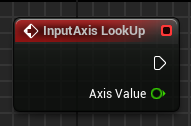
「lookup」
キャラクターやカメラの上下視点をブループリントで制御できます。
How to use
以下の手順を踏むことで、キャラクターやカメラの上下視点をブループリントで制御できます。
- Unreal Engine 5の「Edit」メニューから「Project Settings」を開き、「Input」セクションを選択。
- 「Axis Mappings」で「LookUp」または似た名前の設定を確認・追加。
- 「LookUp」は通常、マウスのY軸またはゲームパッドの右スティックのY軸にマッピングされています。
- キャラクターやパーン可能なカメラがアタッチされたブループリントを開く。
- 「Event Graph」で右クリックし、「InputAxis LookUp」を検索して追加。
- 「InputAxis LookUp」ノードの出力ピンを使ってキャラクターやカメラの回転を制御。
- 一般的には、「Add Controller Pitch Input」ノードに接続して、上下方向の視点変更を行います。
- 「InputAxis LookUp」の「Scale」パラメータを調整して、視点の回転速度を変更可能。
- 正の値で通常の操作、負の値で操作を反転。
- プレイ中に「InputAxis LookUp」が正しく反応しているかを確認。
- 必要に応じて「Project Settings」で感度を調整。
InputAxis Turn
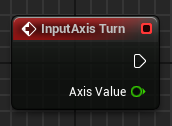
turn
キャラクターやカメラの左右視点をブループリントで制御できるようになります。
How to use
以下の手順を踏むことで、キャラクターやカメラの左右視点をブループリントで制御できるようになります。
- Unreal Engine 5の「Edit」メニューから「Project Settings」を開き、「Input」セクションを選択。
- 「Axis Mappings」で「Turn」または似た名前の設定を確認・追加。
- 「Turn」は通常、マウスのX軸またはゲームパッドの右スティックのX軸にマッピングされています。
- キャラクターや回転可能なカメラがアタッチされたブループリントを開く。
- 「Event Graph」で右クリックし、「InputAxis Turn」を検索して追加。
- 「InputAxis Turn」ノードの出力ピンを使ってキャラクターやカメラの回転を制御。
- 一般的には、「Add Controller Yaw Input」ノードに接続して、左右方向の視点変更を行います。
- 「InputAxis Turn」の「Scale」パラメータを調整して、視点の回転速度を変更可能。
- 正の値で通常の操作、負の値で操作を反転。
- プレイ中に「InputAxis Turn」が正しく反応しているかを確認。
- 必要に応じて「Project Settings」で感度を調整。
Multiply(*)
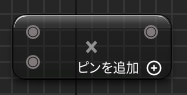
*
ゲームのロジックや視覚的な効果を調整する際に非常に便利です。
How to use
ゲームのロジックや視覚的な効果を調整する際に非常に便利です。
- ブループリントの「Event Graph」や「Function Graph」で右クリックし、「Multiply」ノードを検索して追加。
- 「Multiply」ノードは、一般的に「float * float」や「vector * float」などの異なるタイプのデータを掛け算するために使用します。
- 「Multiply」ノードには、複数の入力ピン(通常はAとB)があります。
- 計算したい2つの値をそれぞれのピンに接続します。例えば、ある速度に時間を掛けて移動距離を計算する場合、「速度」をAに、「時間」をBに接続します。
- 計算結果は「Multiply」ノードの出力ピンに表示されます。
- その出力を他のノードに接続して、結果を利用します。例えば、オブジェクトのスケールを変更する際に、スケール値を「Multiply」ノードで計算し、結果を「Set Actor Scale」ノードに接続することが可能です。
- 「Multiply」ノードは異なるデータタイプに応じたバリエーションがあります。必要に応じて、適切なタイプ
- (例:ベクター、フロート、整数)を選択します。データタイプが一致しない場合、意図しない結果が生じる可能性があるので注意が必要です。
- スピードブーストの倍率を適用する場合、通常の速度にブースト係数を掛けることで、最終的な速度を得ることができます。
- スクリーン上の要素を動的にサイズ変更する場合、基本サイズに倍率を掛けて、新しいサイズを算出します。
Add Controller Pitch Input
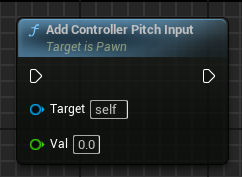
controller pitch
視点を直感的に制御するために不可欠な要素です。特にプレイヤーがキャラクターやカメラの上下視点を自由に操作できるゲームで重要です。
How to use
以下の手順を踏むことで、視点を直感的に制御するために不可欠な要素です。特にプレイヤーがキャラクターやカメラの上下視点を自由に操作できるゲームで重要です。
- ブループリントの「Event Graph」で右クリックし、「Add Controller Pitch Input」ノードを検索して追加。
- このノードは、キャラクターやカメラの上下方向の回転(ピッチ)を制御するために使用されます。
- 「Axis Value」ピンに、コントローラーやマウスの入力値を接続します。
- 一般的には、「InputAxis LookUp」ノードの出力ピンを「Axis Value」ピンに接続します。この入力値に基づいて、カメラやキャラクターが上下に回転します。
- 入力値がそのままピッチの回転速度として使用されます。
- 必要に応じて、入力値を「Multiply」ノードでスケーリングして、回転速度を調整します。例えば、
0.5を掛けて回転を遅くしたり、2.0を掛けて速くしたりできます。
- 入力値に負の値を掛けることで、上下方向の回転操作を反転させることが可能です。これは、ユーザーがカメラの操作を反転したい場合に役立ちます。
- 「Add Controller Pitch Input」ノードは、キャラクターやカメラがコントローラーに反応して上下に視点を移動するために使います。
- 例えば、3Dキャラクターの一人称視点や三人称視点で、プレイヤーがカメラを上下に動かす際に利用します。
- このノードは毎フレーム呼び出されるべきです。通常は「Tick」イベントや「InputAxis LookUp」イベントと組み合わせて使用します。
Add controller Yaw input
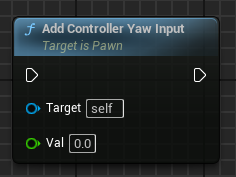
controller yaw
Text here Text here Text here Text here Text here Text here
How to use
以下の手順を踏むことで、Text here
- Text here
- Text here
- Text here
- Text here
- Text here
- Text here
- Text here
- Text here
- Text here
- Text here
- Text here
Add(+)(ユーティリティ>オペレーター)

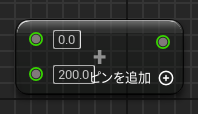
+
位置の更新や数値の加算といった基本的な操作に頻繁に利用されます
How to use
位置の更新や数値の加算といった基本的な操作に頻繁に利用されます
- ブループリントの「Event Graph」や「Function Graph」で右クリックし、「Add」ノードを検索して追加。
- 「Add」ノードは、数値やベクトルなどのデータを加算するために使用されます。データの型(フロート、整数、ベクターなど)に応じて、適切なバージョンを選択します。
- 「Add」ノードには、2つ以上の入力ピン(AとB)があります。
- 例えば、プレイヤーの位置を更新する場合、現在の位置(ベクター)に移動量を加えることができます。この際、Aに現在の位置、Bに移動量を接続します。
- 計算結果は「Add」ノードの出力ピンに表示されます。
- 例えば、オブジェクトの移動やサイズ変更など、他のノードに結果を接続して使用します。
- 「Add」ノードはフロート、整数、ベクター、ローテーションなど、さまざまなデータ型に対応しています。型が一致しない場合、期待通りの結果にならないことがあるので、データ型に注意してください。
- 位置の更新: プレイヤーが移動する際、現在の座標に移動量を加算して新しい座標を計算する。
- スコアの増加: ゲーム内でポイントを加算する際、現在のスコアに新しい得点を加える。
- 合成ベクターの計算: 2つのベクターを加算して、新しいベクターを作成する。
Subtract(-)
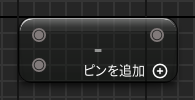
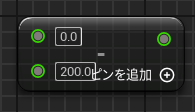
-
減算操作に関わる処理に非常に便利で、特にダメージ処理やタイマー機能などに役立ちます。
How to use
減算操作に関わる処理に非常に便利で、特にダメージ処理やタイマー機能などに役立ちます。
- ブループリントの「Event Graph」や「Function Graph」で右クリックし、「Subtract」ノードを検索して追加。
- 「Subtract」ノードは、数値やベクトルなどのデータを引き算するために使用されます。データの型(フロート、整数、ベクターなど)に応じて、適切なバージョンを選択します。
- 「Subtract」ノードには、2つの入力ピン(AとB)があります。
- AからBを引く形になります。例えば、現在の体力からダメージを引く場合、Aに現在の体力、Bに受けたダメージを接続します。
- 計算結果は「Subtract」ノードの出力ピンに表示されます。
- 例えば、位置やスコア、その他の数値の減算結果を使ってゲーム内のオブジェクトやステータスを更新します。
- 「Subtract」ノードは、フロート、整数、ベクター、ローテーションなどさまざまなデータ型に対応しています。データ型が一致しない場合、期待通りの結果にならない可能性があるため、入力のデータ型に注意してください。
- 体力の減少: プレイヤーがダメージを受けたとき、現在の体力からダメージを引いて新しい体力を計算する。
- 位置の差分: 2つの位置ベクターを引き算して、2点間の距離や方向を計算する。
- 時間の減少: カウントダウンタイマーを実装する際、残り時間から経過時間を引いて新しい残り時間を計算する。
Clamp(Float)
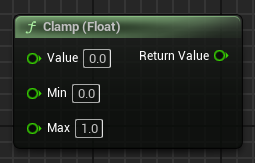
clamp float
Text here Text here Text here Text here Text here Text here
How to use
以下の手順を踏むことで、Text here
- Text here
- Text here
- Text here
- Text here
- Text here
- Text here
- Text here
- Text here
- Text here
- Text here
- Text here
Event BeginPlay
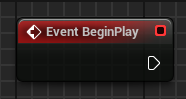
Search Text
Text here Text here Text here Text here Text here Text here
How to use
以下の手順を踏むことで、Text here
- Text here
- Text here
- Text here
- Text here
- Text here
- Text here
- Text here
- Text here
- Text here
- Text here
- Text here
Custom Event
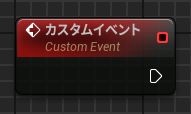
Search Text
Text here Text here Text here Text here Text here Text here
How to use
以下の手順を踏むことで、Text here
- Text here
- Text here
- Text here
- Text here
- Text here
- Text here
- Text here
- Text here
- Text here
- Text here
- Text here
Get World Location
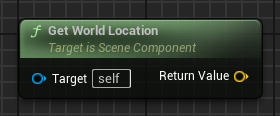
Search Text
Text here Text here Text here Text here Text here Text here
How to use
以下の手順を踏むことで、Text here
- Text here
- Text here
- Text here
- Text here
- Text here
- Text here
- Text here
- Text here
- Text here
- Text here
- Text here
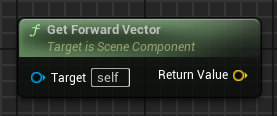
Get Forward Vector
Search Text
Text here Text here Text here Text here Text here Text here
How to use
以下の手順を踏むことで、Text here
- Text here
- Text here
- Text here
- Text here
- Text here
- Text here
- Text here
- Text here
- Text here
- Text here
- Text here
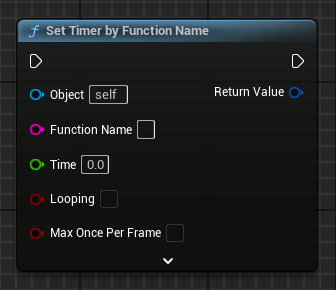
Set Timer by Function Name
Search Text
Text here Text here Text here Text here Text here Text here
How to use
以下の手順を踏むことで、Text here
- Text here
- Text here
- Text here
- Text here
- Text here
- Text here
- Text here
- Text here
- Text here
- Text here
- Text here
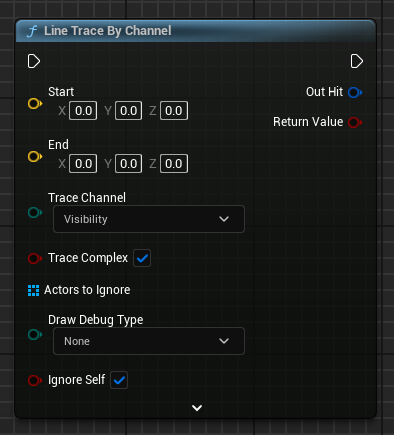
Line Trace By Channel
Search Text
Text here Text here Text here Text here Text here Text here
How to use
以下の手順を踏むことで、Text here
- Text here
- Text here
- Text here
- Text here
- Text here
- Text here
- Text here
- Text here
- Text here
- Text here
- Text here
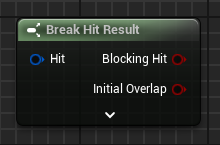
Break Hit Result
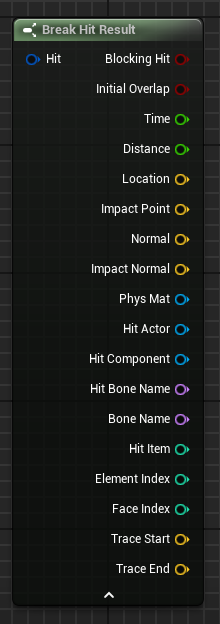
Search Text
Text here Text here Text here Text here Text here Text here
How to use
以下の手順を踏むことで、Text here
- Text here
- Text here
- Text here
- Text here
- Text here
- Text here
- Text here
- Text here
- Text here
- Text here
- Text here
Branch
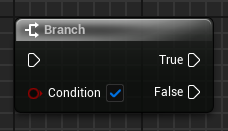
Search Text
Text here Text here Text here Text here Text here Text here
How to use
以下の手順を踏むことで、Text here
- Text here
- Text here
- Text here
- Text here
- Text here
- Text here
- Text here
- Text here
- Text here
- Text here
- Text here
Vector Length
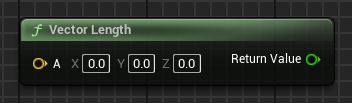
Search Text
Text here Text here Text here Text here Text here Text here
How to use
以下の手順を踏むことで、Text here
- Text here
- Text here
- Text here
- Text here
- Text here
- Text here
- Text here
- Text here
- Text here
- Text here
- Text here
Make PostProcessSettings
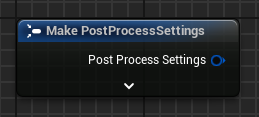
Search Text
Text here Text here Text here Text here Text here Text here
How to use
以下の手順を踏むことで、Text here
- Text here
- Text here
- Text here
- Text here
- Text here
- Text here
- Text here
- Text here
- Text here
- Text here
- Text here
Lerp
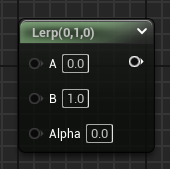
L+左クリック
Text here Text here Text here Text here Text here Text here
How to use
以下の手順を踏むことで、Text here
- Text here
- Text here
- Text here
- Text here
- Text here
- Text here
- Text here
- Text here
- Text here
- Text here
- Text here
Roughness
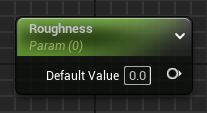
Roughness
Text here Text here Text here Text here Text here Text here
How to use
以下の手順を踏むことで、Text here
- Text here
- Text here
- Text here
- Text here
- Text here
- Text here
- Text here
- Text here
- Text here
- Text here
- Text here
Constant-1
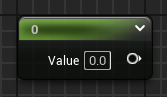
1+左クリック
Text here Text here Text here Text here Text here Text here
How to use
以下の手順を踏むことで、Text here
- Text here
- Text here
- Text here
- Text here
- Text here
- Text here
- Text here
- Text here
- Text here
- Text here
- Text here
Constant-2
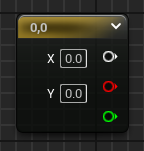
2+左クリック
Text here Text here Text here Text here Text here Text here
How to use
以下の手順を踏むことで、Text here
- Text here
- Text here
- Text here
- Text here
- Text here
- Text here
- Text here
- Text here
- Text here
- Text here
- Text here
Constant-3
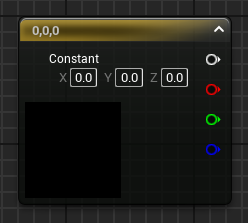
3+左クリック
Text here Text here Text here Text here Text here Text here
How to use
以下の手順を踏むことで、Text here
- Text here
- Text here
- Text here
- Text here
- Text here
- Text here
- Text here
- Text here
- Text here
- Text here
- Text here
Constant-4
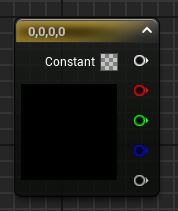
4+左クリック
Text here Text here Text here Text here Text here Text here
How to use
以下の手順を踏むことで、Text here
- Text here
- Text here
- Text here
- Text here
- Text here
- Text here
- Text here
- Text here
- Text here
- Text here
- Text here
keyboard-1
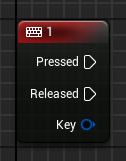
keyboard1
Text here Text here Text here Text here Text here Text here
How to use
以下の手順を踏むことで、Text here
- Text here
- Text here
- Text here
- Text here
- Text here
- Text here
- Text here
- Text here
- Text here
- Text here
- Text here
Add Timeline
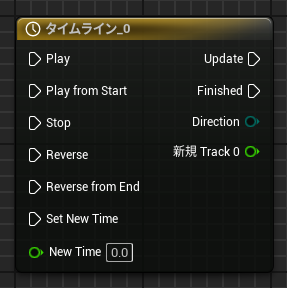
Add Timeline
Text here Text here Text here Text here Text here Text here
How to use
以下の手順を踏むことで、Text here
- Text here
- Text here
- Text here
- Text here
- Text here
- Text here
- Text here
- Text here
- Text here
- Text here
- Text here
Set Scalar Parameter Value
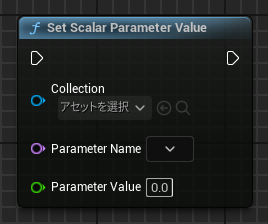
Set Scalar Parameter Value
Text here Text here Text here Text here Text here Text here
How to use
以下の手順を踏むことで、Text here
- Text here
- Text here
- Text here
- Text here
- Text here
- Text here
- Text here
- Text here
- Text here
- Text here
- Text here
Component Mask
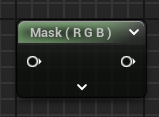
Mask
Text here Text here Text here Text here Text here Text here
How to use
以下の手順を踏むことで、Text here
- Text here
- Text here
- Text here
- Text here
- Text here
- Text here
- Text here
- Text here
- Text here
- Text here
- Text here
Node Name
Search Text
Text here Text here Text here Text here Text here Text here
How to use
以下の手順を踏むことで、Text here
- Text here
- Text here
- Text here
- Text here
- Text here